
As the world's premier video-sharing network, the YouTube mobile app is opened daily by billions of people. But when examining your smartphone's storage diagnostics, you may be alarmed to find that clearing YouTube cache and managing offline downloads is necessary to reclaim anywhere from 4 to 12 GB of flash memory. Even if you consider yourself a casual viewer who never intentionally downloads video files, YouTube's aggressive prefetching architecture constantly stores multi-gigabyte media payloads on your device.
Executive Summary & Research Finding
YouTube using 6+ GB on your phone? Learn how to clear YouTube cache, manage offline Premium video downloads, and stop Smart Downloads from eating storage.
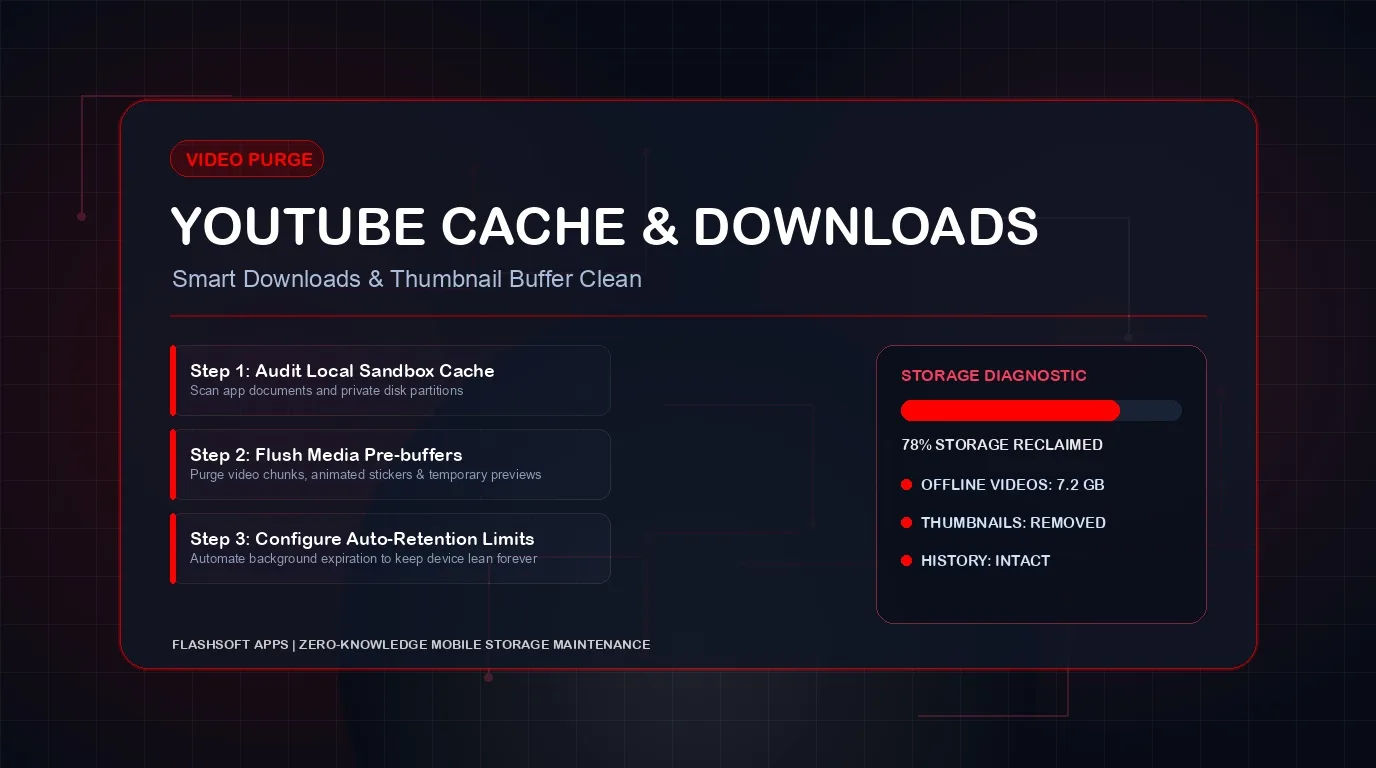
YouTube's storage footprint stems from three distinct sources: high-resolution thumbnail grids, video pre-roll buffers (the first 5 to 10 seconds of recommended videos are cached so they start instantly upon tapping), and the controversial 'Smart Downloads' feature for YouTube Premium subscribers. Because iOS isolates apps inside strict sandboxes without exposing an in-app clear cache button, purging these bloated temporary containers requires specific techniques.
What Makes the YouTube App Consume So Much Space?
Before troubleshooting, examine the three main pillars of YouTube's local storage consumption:
| Data Category | Storage Mechanism | Typical Footprint | Impact of Clearing | Safe to Remove? |
|---|---|---|---|---|
| Smart Downloads (Premium) | Automated background downloads of recommended videos and Shorts | 3.0 GB – 10.0 GB (Heaviest) | Deletes offline video files; subscriptions and history stay safe | 100% Safe |
| Video Playback Buffers | Pre-buffered video segments and DASH streaming audio chunks | 1.0 GB – 3.5 GB | Reclaims immediate flash memory | 100% Safe |
| Thumbnails & Channel Avatars | High-res WebP image previews for endless home feed scrolling | 500 MB – 1.8 GB | Clears visual cache; reloads images on next browse | 100% Safe |
| Search & Watch History Index | SQLite database tracking viewed timestamps and resume points | 50 MB – 150 MB | Synced to Google account; clearing app cache does not lose account history | Safe |
How to Clear YouTube Cache on iPhone (iOS)
Because Google does not provide a general 'Clear Cache' button in the iOS YouTube app, many users attempt to 'Offload App'. However, iOS offloading only deletes the app binary while leaving all Documents & Data and video cache behind. To genuinely reclaim YouTube storage on iOS, follow these two effective methods:
- Method 1: Purge Offline Video Downloads: Open YouTube > tap your Profile (You) in the bottom right > tap Downloads. Tap the three dots next to downloaded videos and select Delete from downloads. In YouTube Settings >Background & downloads, you can also tap Delete downloads to instantly free all saved video files.
- Method 2: Clean Reinstall for Temporary Media Cache: If 'Documents & Data' remains huge in iPhone Storage, go to Settings > General > iPhone Storage > YouTube. Tap Delete App (not Offload App). Reinstall YouTube from the App Store and log in. Your watch history, playlists, and subscriptions remain perfectly safe in your Google account, while all corrupted and stale media cache is completely purged.
How to Clear YouTube Cache on Android
Android users enjoy native system-level control to dump YouTube's cache in seconds:
- Open your Android phone's Settings > go to Apps.
- Tap on YouTube from the installed app list.
- Tap Storage & Cache.
- Tap Clear Cache. You will immediately reclaim all temporary thumbnail and streaming buffers.
- Do not tap Clear Storage unless you want to reset your in-app settings and downloaded videos.
How to Disable and Delete YouTube Smart Downloads
If you subscribe to YouTube Premium, Google enables 'Smart Downloads' by default. This feature silently downloads up to 20 videos every night over Wi-Fi based on your algorithm recommendations, rapidly eating 5 to 10 GB of phone memory.
- Open the YouTube app > tap your You tab (bottom right) > tap the Gear icon (Settings).
- Tap Background & downloads (or Downloads).
- Toggle OFF Smart downloads to permanently prevent automatic background video hoarding.
- Under the same menu, tap Delete all downloads to immediately wipe existing offline videos from your phone.
Download Quality Setting Tip
If you do intentionally download videos for flights or commutes, adjust 'Download quality' from 1080p Full HD to 720p or Medium (360p). A 2-hour podcast at 1080p takes roughly 2.5 GB, whereas at 720p it consumes only 600 MB—saving 75% of your storage space.
Long-Term Habits to Keep YouTube Lean
- Turn Off Autoplay on Home Feed: In Settings > General > Playback in feeds, set it to Off or Wi-Fi only to prevent YouTube from buffering videos you only glanced at.
- Audit Downloaded Playlists: Periodically visit your Downloads tab to delete watched documentaries and music videos.
- Manage YouTube Music Separately: If you use the standalone YouTube Music app, check its offline download settings as it maintains an entirely separate cache.
Optimize Your Whole Mobile Device
Taming YouTube's aggressive streaming cache is a tremendous win for your phone's memory. However, streaming services work alongside offline caches from other apps like Netflix and Spotify. For a complete guide to reclaiming space, read our tutorial on how to free up smartphone storage safely.
To automate your device cleanup and eliminate forgotten junk files, install Clearly Smart Storage Cleaner. Its smart algorithms instantly detect heavy videos, analyze photo duplicates, and help you free up storage and clean phone memory in seconds.
Instant iPhone Storage & iCloud Savings Calculator
Adjust your photo library size, duplicate estimates, and 4K video count to calculate how many gigabytes you can safely reclaim.