
For millions of smartphone owners across Europe, Asia, and Latin America, Rakuten Viber is the primary communication pipeline for family chats, community announcements, and business messaging. Yet when examining your phone's memory breakdown in settings, you may be shocked to discover that clearing Viber cache and media storage can recover anywhere from 4 to 12 GB of consumed disk space. Because Viber defaults to caching every inbound picture, video clip, and promotional banner, inactive groups can silently overwhelm your phone's internal storage.
Executive Summary & Research Finding
Clear Viber cache and delete media on iPhone & Android. Free up 5+ GB of space by removing cached community photos, sticker packs, and old voice notes.
Viber's local architecture stores media in a hybrid structure: unlike Telegram's pure cloud approach, Viber stores a combination of decrypted local SQLite databases, cached thumbnail previews, downloaded sticker asset packs, and raw media files within its private iOS app sandbox. If you participate in large Viber Communities or public channels, hundreds of high-resolution images are downloaded automatically in the background—even if you never open the chat window.
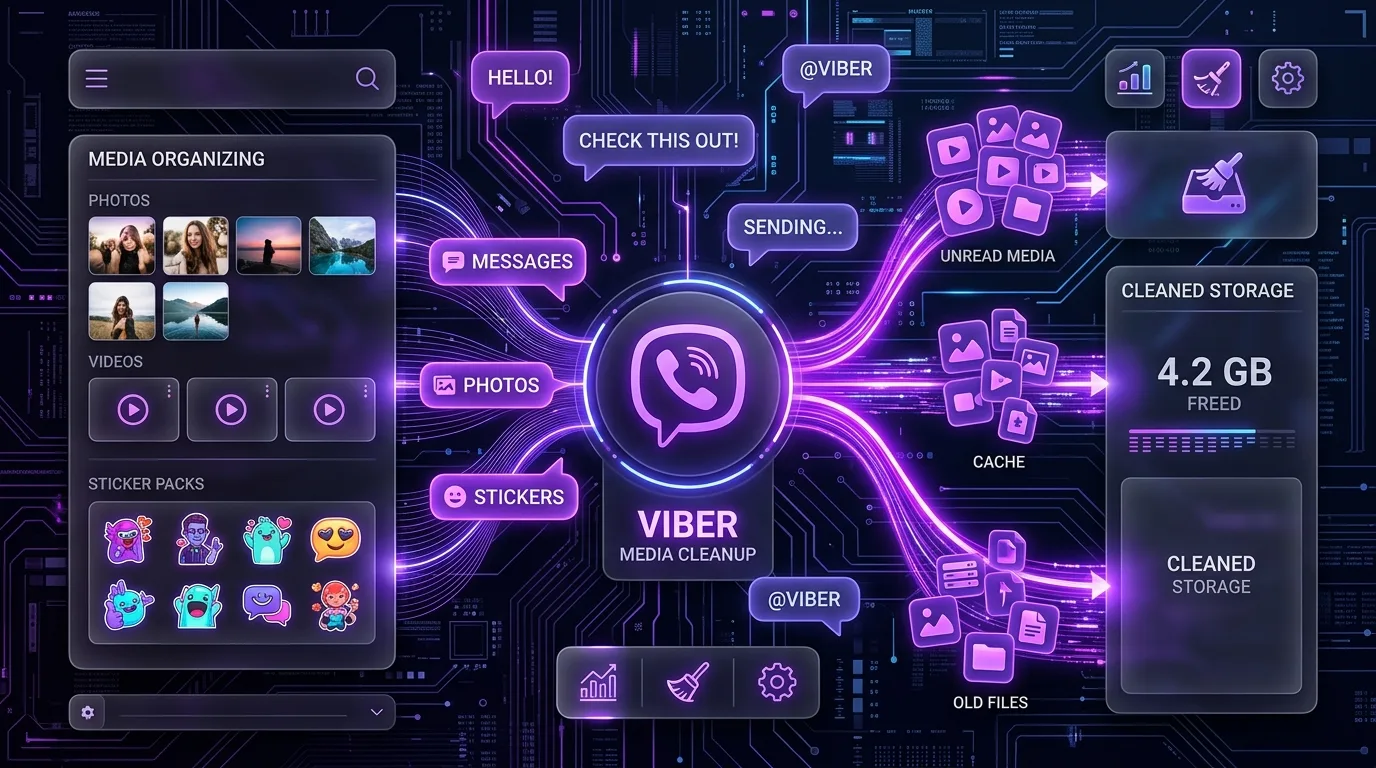
The Four Heaviest Data Hoards in Viber
Before blindly deleting chats, it helps to understand what types of files Viber actually saves to your device, how much space they consume, and whether removing them impacts your chat history.
| Data Type | Storage Mechanism | Average Footprint | What Happens When Cleared? | Safe to Remove? |
|---|---|---|---|---|
| Community & Channel Media | Cached photos, videos, and ads downloaded from public groups | 2.5 GB – 7.0 GB (Heaviest) | Reclaims immediate disk space; removes unviewed community media | 100% Safe |
| Animated Sticker Packs | Downloaded sound and animation assets stored locally | 400 MB – 1.5 GB | Removes downloaded sticker assets (re-downloadable anytime) | 100% Safe |
| Voice & Video Messages | Audio notes and short circular video recordings in private chats | 800 MB – 2.5 GB | Clears local audio cache; message bubbles remain in chat log | Safe |
| In-App Web Browser Cache | Temporary cookies and cached HTML from external links clicked inside Viber | 200 MB – 800 MB | Clears web tracking scripts and temporary page assets | 100% Safe |
How to Clear Viber Cache & Media on iPhone (iOS)
On iOS, Viber provides a dedicated Storage Usage screen that allows you to purge accumulated media files by chat or across the entire application without deleting your written message logs.
- Open Viber on your iPhone.
- Tap the More tab (three dots icon) in the bottom right corner.
- Tap Settings > select General > tap Storage Usage.
- Viber will calculate the space consumed by photos, videos, GIFs, and other files. Tap Clear Cache to immediately dump temporary app data.
- To clean individual large chats: look under Chats & Communities, select the heaviest chat thread, tap Select All, and tap the Trash icon to delete stored media while keeping all text messages intact.
How to Clear Viber Cache on Android
Android gives you the dual ability to manage storage from inside Viber or wipe cache directly through the operating system settings without opening the app.
- Open your phone's Settings app > go to Apps or Application Manager.
- Scroll down and tap on Viber.
- Tap on Storage & Cache.
- Tap Clear Cache. (Important: Do NOT tap Clear Storage or Clear Data, as that will deregister your phone number and delete your chat history).
- Next, open Viber > go to More > Settings > Media and Storage and tap Clear Cache inside the app as well.
Stop Viber from Saving Photos to Camera Roll
By default, Viber may automatically save every photo and video you receive directly into your iPhone Photos library or Android Gallery. This creates immediate duplicate files! Disable this by going to Viber > More > Settings > Media and Storage > turn OFF 'Save to Gallery'.
How to Stop Viber from Eating Your Storage in the Future
To prevent Viber from silently swallowing gigabytes of storage every month, adjust these three essential media settings:
- Disable Auto-Download on Cellular & Wi-Fi: Go to Settings > Media and Storage and turn off Auto-download media when connected to Wi-Fi and over mobile network. This forces media to download only when you explicitly tap on it.
- Delete Unused Sticker Packs: In Viber, open any chat, tap the sticker picker, tap the gear icon, and delete heavy promotional sticker packs you no longer send.
- Leave Inactive Communities: Public communities with thousands of members continuously stream media. Swipe left on old communities and select Leave and Delete to permanently stop background caching.
- Set Media Deletion Timer: Under Settings > Media and Storage > Keep Media, change the retention window from Forever to 1 Month or 1 Year.
Comprehensive Smartphone Cleanup Made Easy
Purging Viber's media hoard frees up immediate breathing room, but messaging apps are just one vector of mobile clutter. Duplicate photo bursts, old screen recordings, and corrupted system files often occupy dozens of gigabytes. For tips on managing your visual media, read our tutorial on cleaning duplicate photos on iPhone.
To keep your device running smoothly without manual hassle, install Clearly Smart Storage Cleaner. Its smart scanning engine pinpoints oversized videos, finds hidden media duplicates, and helps you free up storage and clean phone memory in seconds.
Instant iPhone Storage & iCloud Savings Calculator
Adjust your photo library size, duplicate estimates, and 4K video count to calculate how many gigabytes you can safely reclaim.